TCS iON Typing Exam Interface - क्यों जानना जरूरी है?
दोस्तों, मैं अमित कुमार हूँ और आज मैं आपको बताऊंगा एक बहुत ही critical topic के बारे में जो हर typing exam aspirant को पता होना चाहिए - TCS iON typing test का actual interface। मैंने खुद कई government exams दिए हैं और सैकड़ों students को guide किया है। मैं आपको बता सकता हूं कि exam hall में सबसे बड़ा shock तब लगता है जब आप computer screen के सामने बैठते हैं और interface बिल्कुल अलग दिखता है उससे जो आपने practice किया था। यह confusion, यह unfamiliarity - यह आपके पहले 2-3 minutes बर्बाद कर देती है जो बहुत precious होते हैं। और nervous candidates के लिए तो यह panic का कारण बन जाता है।
TCS iON एक leading exam conducting body है India में जो SSC, Banking, Railway और कई अन्य government exams conduct करती है। इनका typing test interface standardized है लेकिन practice websites से काफी अलग है। Screen layout different है, functionalities अलग हैं, कुछ features available हैं जो आप expect नहीं करते, और कुछ features नहीं हैं जिनकी आप आदी हैं। अगर आपने सिर्फ multityping.in या किसी अन्य website पर practice की है (जो बिल्कुल सही है और जरूरी भी है), तो भी actual TCS iON interface को समझना बहुत important है ताकि exam day पर कोई surprise न हो।
इस comprehensive guide में मैं आपको step-by-step बताऊंगा कि TCS iON typing interface exactly कैसा दिखता है, हर element का क्या function है, screen पर text कैसे display होता है, आप कैसे type करते हैं, backspace policy क्या है, scrolling कैसे होती है, timer कैसे काम करता है - literally हर छोटी-बड़ी detail। साथ ही मैं आपको tips भी दूंगा कि इस specific interface के लिए कैसे practice करें और exam day पर efficiently कैसे काम करें। यह guide based है मेरे personal experience और hundreds of students के feedback पर जिन्होंने recently TCS iON conducted exams दिए हैं। तो चलिए शुरू करते हैं यह detailed walkthrough।

TCS iON टाइपिंग टेस्ट इंटरफेस - मुख्य स्क्रीन लेआउट
Screen Layout और Interface Elements - पूरी Details
Top Section - Header Area
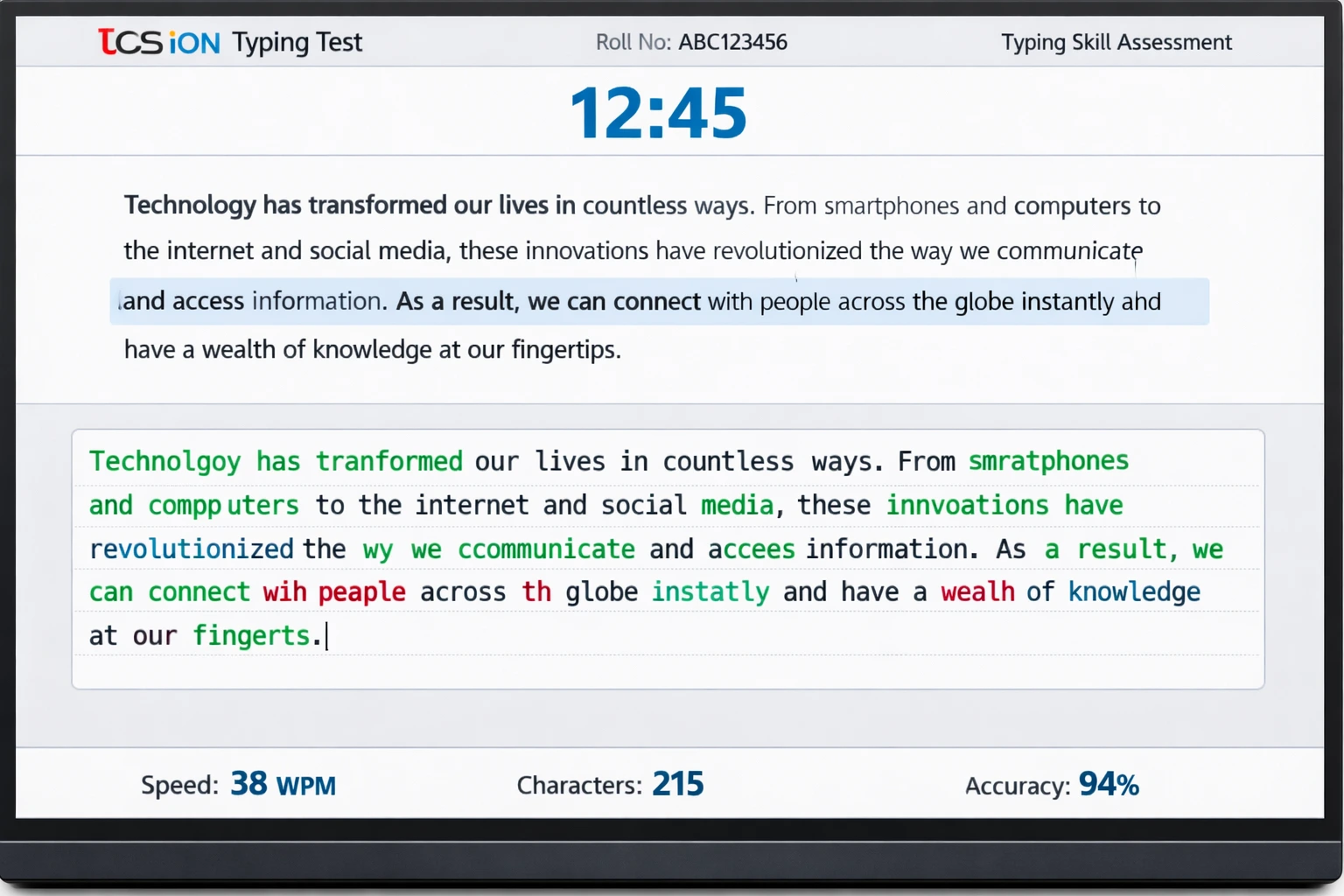
जब आप TCS iON typing test start करते हैं तो सबसे ऊपर header area होता है जो पूरे test के दौरान visible रहता है। यहां सबसे prominently timer display होता है - बड़े digital numbers में countdown। जैसे अगर 15-minute test है तो आप देखेंगे 15:00, फिर 14:59, 14:58... और ऐसे zero तक countdown होता रहता है। यह timer color-coded होता है - शुरू में green/blue, जब 5 minutes बचते हैं तो yellow हो जाता है, और last 2 minutes में red। यह visual indication आपको alert रखता है बिना timer को continuously देखे।
Timer के साथ-साथ header में candidate details भी होती हैं - आपका roll number, exam name, subject (typing test - English/Hindi)। कुछ versions में instruction button भी होता है जिस पर click करके आप test instructions फिर से देख सकते हैं, लेकिन यह generally नहीं करना चाहिए क्योंकि time waste होता है। Right side corner में कभी-कभी help/query button होता है emergency के लिए - अगर कोई technical issue आए तो invigilator को alert करने के लिए। लेकिन normal circumstances में इसे touch नहीं करना है। Header area screen के लगभग 10-12% space लेता है।
Main Content Area - Passage Display Section
Header के नीचे main content area होता है जो screen का सबसे बड़ा हिस्सा है - लगभग 40-45%। यहां वो passage display होता है जो आपको type करना है। Layout typically top-to-bottom होता है यानी passage ऊपर से नीचे की तरफ scroll होता है, left-to-right नहीं। Text का font size moderate होता है - न बहुत बड़ा न बहुत छोटा - comfortable reading के लिए। Font type generally सansans-serif होता है जैसे Arial या Calibri। Line spacing adequate होती है ताकि lines आपस में merge न लगें।
Passage display में एक important feature है highlighting। जिस line को आपको currently type करना है, वो highlighted होती है - generally light blue या light yellow background में। यह बहुत helpful है क्योंकि आप easily track कर सकते हैं कि कहां पहुंचे हैं। कुछ versions में जो word आप currently type कर रहे हैं वो भी अलग से highlight होता है। यह real-time indication आपको focused रखता है। Passage display area static नहीं है - जैसे-जैसे आप type करते जाते हैं, वैसे-वैसे यह auto-scroll होता है (इसके बारे में मैं detail में आगे बताऊंगा)।
Input Box - जहां आप Type करते हैं
Passage display के ठीक नीचे input box होता है - यह वो area है जहां आपकी actual typing appear होती है। यह एक text field होता है जो screen के लगभग 30-35% area में होता है। Font size यहां भी readable होता है। जो आप type करते हैं वो real-time में यहां दिखता है। Color coding होती है accuracy के according - correct characters green में show होते हैं, incorrect characters red में। यह instant feedback बहुत valuable है क्योंकि आप तुरंत देख सकते हैं कि कोई mistake हुई है या नहीं।
Input box में cursor blink करता रहता है showing कि system active है और आपकी keystrokes receive कर रहा है। Space bar press करने पर word complete होता है और अगले word पर cursor move हो जाता है। Enter/Return key generally काम नहीं करती - automatic line break होता है जब word complete होता है। Input box की एक limitation है - आप पीछे जाकर पुराने words edit नहीं कर सकते। सिर्फ current word में ही backspace से correction possible है (इसके बारे में मैं अगले section में detail में बताऊंगा)। यह restriction purposely रखी गई है ताकि test की integrity maintain रहे।
Bottom Section - Stats और Controls
Screen के सबसे नीचे एक status bar होता है जहां live statistics display होती हैं। सबसे prominent है WPM (Words Per Minute) counter जो real-time में update होता रहता है। यह आपको continuous feedback देता है कि आपकी current speed क्या है। लेकिन ध्यान दें - यह gross WPM होता है, errors subtract करके नहीं। तो अगर आप 45 WPM दिखा रहा है लेकिन errors भी हो रही हैं, तो actual net WPM कम होगा। कुछ versions में accuracy percentage भी live show होती है जो और भी helpful है।
Character count भी display होता है - total कितने characters type हो चुके हैं। यह number continuously बढ़ता रहता है। Error count भी कभी-कभी show होता है लेकिन सभी versions में नहीं। Bottom section में कभी-कभी navigation buttons भी होते हैं - 'Submit Test' button (जो सिर्फ test complete होने पर या समय खत्म होने पर active होता है), 'Pause' button (generally typing tests में pause allowed नहीं होता), और 'Instructions' button। Overall bottom section screen के 10-15% space लेता है।
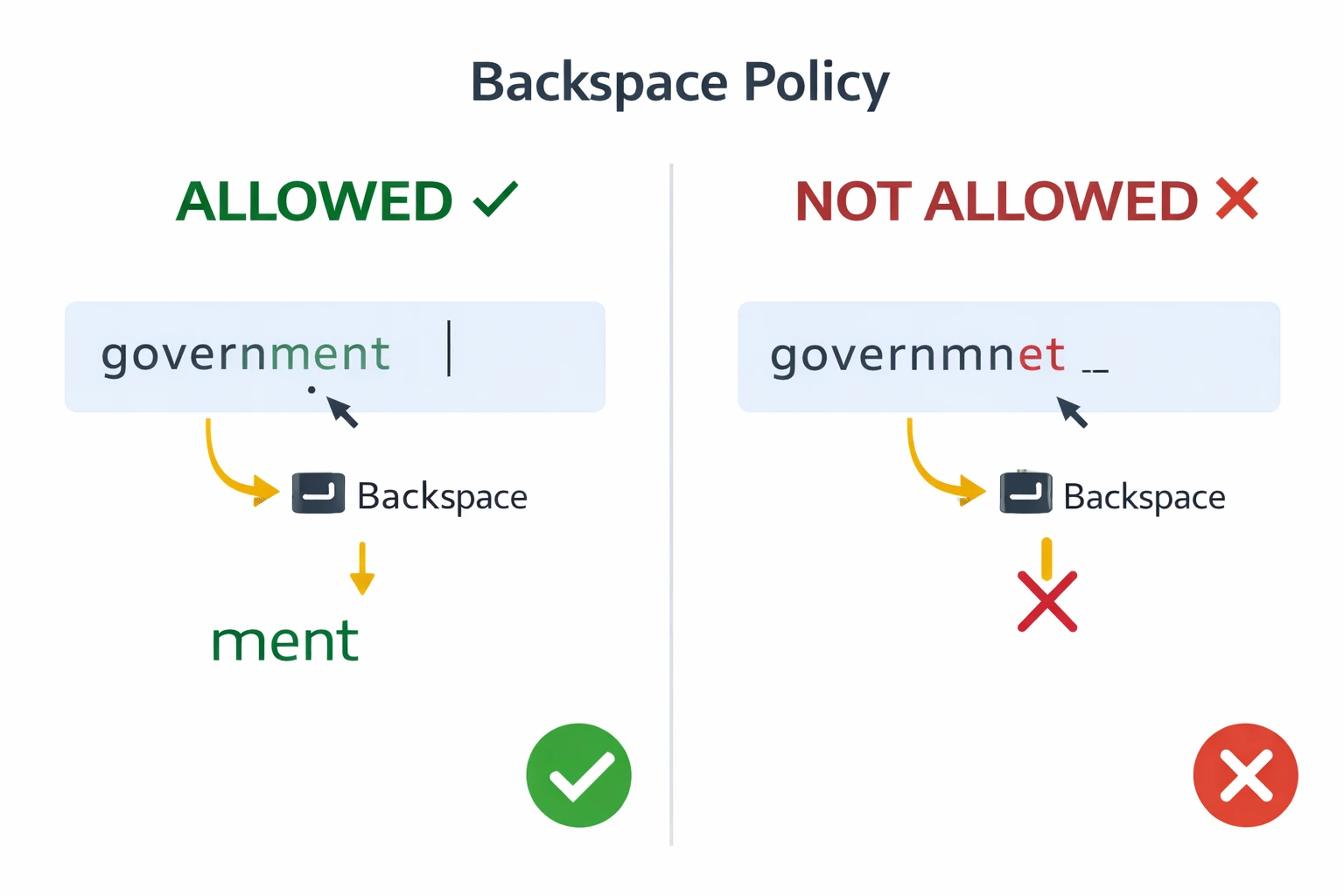
TCS iON टाइपिंग टेस्ट - Backspace Policy प्रदर्शन
Backspace Policy - क्या Allow है और क्या नहीं?
Current Word में Correction - Allowed
TCS iON typing interface में backspace की policy बहुत specific है और इसे समझना critical है। सबसे पहली और सबसे important बात - आप current word में backspace use कर सकते हैं। Matlab जो word आप अभी type कर रहे हैं, अगर उसमें कोई गलती हो जाए तो immediately backspace press करके उसे correct कर सकते हैं। उदाहरण के लिए, मान लीजिए आपको 'government' type करना है और आपने 'governmnet' type कर दिया (m और n की जगह बदल गई)। अभी आपने space bar नहीं दबाया है, तो आप backspace से तीन characters delete कर सकते हैं (n, e, t) और फिर सही से 'ment' type कर सकते हैं।
यह feature बहुत useful है क्योंकि typing करते समय minor mistakes होना बहुत natural है। खासकर fast typing में जब fingers quickly move कर रही होती हैं, तो adjacent keys accidentally press हो सकती हैं। Current word correction allow होने से आप इन immediate mistakes को fix कर सकते हैं बिना उन्हें final submission में जाने दिए। लेकिन यहां ध्यान देने वाली बात यह है कि हर backspace भी count होता है as a keystroke। तो अगर आपने 10 characters type किए, फिर 3 backspace किए, फिर 3 सही characters type किए, तो total 16 keystrokes गिने जाएंगे। यह आपके gross speed को slightly affect कर सकता है, हालांकि accuracy improve हो जाती है जो ज्यादा important है।
Previous Words में Edit - Not Allowed
अब आता है restriction - एक बार आपने space bar press कर दिया और word complete हो गया, तो आप उस word में वापस जाकर edit नहीं कर सकते। यह एक hard restriction है TCS iON interface में। Matlab अगर आपने 'government' की जगह 'governmnet' type कर दिया और space bar दबा दिया, तो अब आप cursor को back move करके उस word में correction नहीं कर सकते। Arrow keys काम नहीं करती पीछे जाने के लिए। Mouse से भी आप पुराने text पर click नहीं कर सकते edit करने के लिए।
यह restriction क्यों है? क्योंकि typing test में यह measure करना है कि आप कितनी accurately first attempt में type कर सकते हैं। अगर unlimited editing allow हो तो लोग पूरा passage जल्दी-जल्दी type कर देंगे errors के साथ, फिर बाद में सब correct करेंगे। यह actual typing skill का सही assessment नहीं होगा। इसलिए यह policy enforce की गई है। इसका practical implication यह है कि आपको बहुत careful रहना पड़ता है हर word के साथ। जल्दबाजी में गलती कर दी और space press कर दिया, तो वो permanent error हो गई। इसलिए strategy यह होनी चाहिए - controlled speed maintain करें, हर word को ध्यान से type करें, और space bar press करने से पहले mental verification करें।
Practical Tips - Backspace Policy के साथ कैसे Deal करें
Backspace policy को consider करते हुए आपकी typing strategy क्या होनी चाहिए? सबसे पहला tip - develop करें एक habit of self-correction before completing the word। जैसे ही कोई character type किया, peripheral vision से check करें input box में कि सही character आया है या नहीं। अगर red color दिख रहा है (incorrect character), तो immediately backspace करें। Yeh एक split-second decision होनी चाहिए, automatic। इसके लिए practice चाहिए - touch typing के साथ strong visual feedback loop।
दूसरा tip - space bar press करने से पहले एक micro-pause लें। यह pause बहुत छोटा होगा, literally 0.1-0.2 seconds, लेकिन इस micro-pause में आपका brain word को verify करेगा। यह conscious effort नहीं होनी चाहिए बल्कि subconscious pattern। Regular practice से यह develop होता है। तीसरा tip - अगर आपको लगे कि previous word में गलती हो गई है, तो उस पर dwell मत करें। उसे mentally accept करें और आगे बढ़ें। Loss को cut करें। अगर आप पिछली गलती के बारे में सोचते रहेंगे तो present word में भी गलती होगी। Time management और mental composure maintain करना important है।
Auto-Scrolling Feature - कैसे काम करता है?
Automatic Passage Progression
TCS iON interface में auto-scrolling एक बहुत convenient feature है जो आपको manually scroll करने की tension से बचाता है। जैसे-जैसे आप type करते जाते हैं, passage automatically scroll होता रहता है ताकि currently type करने वाली line हमेशा visible और comfortable position में रहे। यह scrolling smooth होती है, jerky नहीं। Generally जब आप किसी line का लगभग 60-70% type कर लेते हैं, तो passage थोड़ा ऊपर की तरफ scroll हो जाता है और अगली lines नीचे visible हो जाती हैं।
Auto-scrolling का logic यह है कि currently active line (जो highlighted होती है) screen के comfortable reading zone में रहे - न बहुत ऊपर न बहुत नीचे। Ideally यह line screen के upper-middle portion में होती है। इससे आपकी neck को बहुत ऊपर या नीचे देखने की जरूरत नहीं पड़ती। Ergonomically यह बहुत अच्छा है क्योंकि prolonged typing में neck strain एक common problem है। Auto-scrolling यह ensure करती है कि आपका viewing angle consistent रहे पूरे test के दौरान।
Scrolling Speed और Synchronization
Auto-scrolling की speed आपकी typing speed के साथ synchronized होती है। अगर आप fast type कर रहे हैं तो scrolling भी accordingly fast होगी। अगर slow type कर रहे हैं तो scrolling भी slow। यह dynamic adjustment होता है automatically। आपको कुछ करना नहीं पड़ता। System intelligently detect करता है कि आप कितनी fast progress कर रहे हैं और उसी हिसाब से scroll करता है। यह very user-friendly feature है।
लेकिन कभी-कभी कुछ students को लगता है कि scrolling थोड़ी fast या slow हो रही है। Actually यह perception होता है जो nervousness या unfamiliarity की वजह से आता है। Practice से यह comfortable हो जाता है। Important यह है कि आप scrolling के बारे में consciously सोचें नहीं test के दौरान। बस अपनी typing पर focus करें, highlighted line को follow करें, और system को scrolling handle करने दें। Overthinking scrolling से distraction होता है। Trust the system और अपने typing flow में रहें।
Manual Scrolling - क्या Available है?
यह एक common question है - क्या TCS iON interface में manual scrolling की option है? Generally नहीं। Typing test के दौरान आपको mouse use करने की permission नहीं होती (कुछ rare exceptions को छोड़कर)। Keyboard के arrow keys या Page Up/Down keys भी scrolling के लिए work नहीं करती। यह intentional restriction है। Reason यह है कि manual scrolling से candidates आगे की lines देखकर mentally prepare कर सकते हैं जो test की fairness को affect करता है। इसलिए auto-scrolling ही sole mechanism है passage progression की।
इसका practical implication यह है कि आपको auto-scrolling के साथ comfortable होना पड़ेगा। Initial discomfort हो सकती है अगर आपने हमेशा static passages practice किए हैं। लेकिन 2-3 practice sessions में आप इसे naturally accept कर लेंगे। Actually auto-scrolling एक blessing है क्योंकि यह manual effort save करती है और आपको fully typing पर concentrate करने देती है। बस आपको यह ensure करना है कि practice करते समय भी जहां तक possible auto-scrolling जैसा environment simulate करें। multityping.in जैसे platforms पर practice करें जो real exam conditions को closely replicate करते हैं।
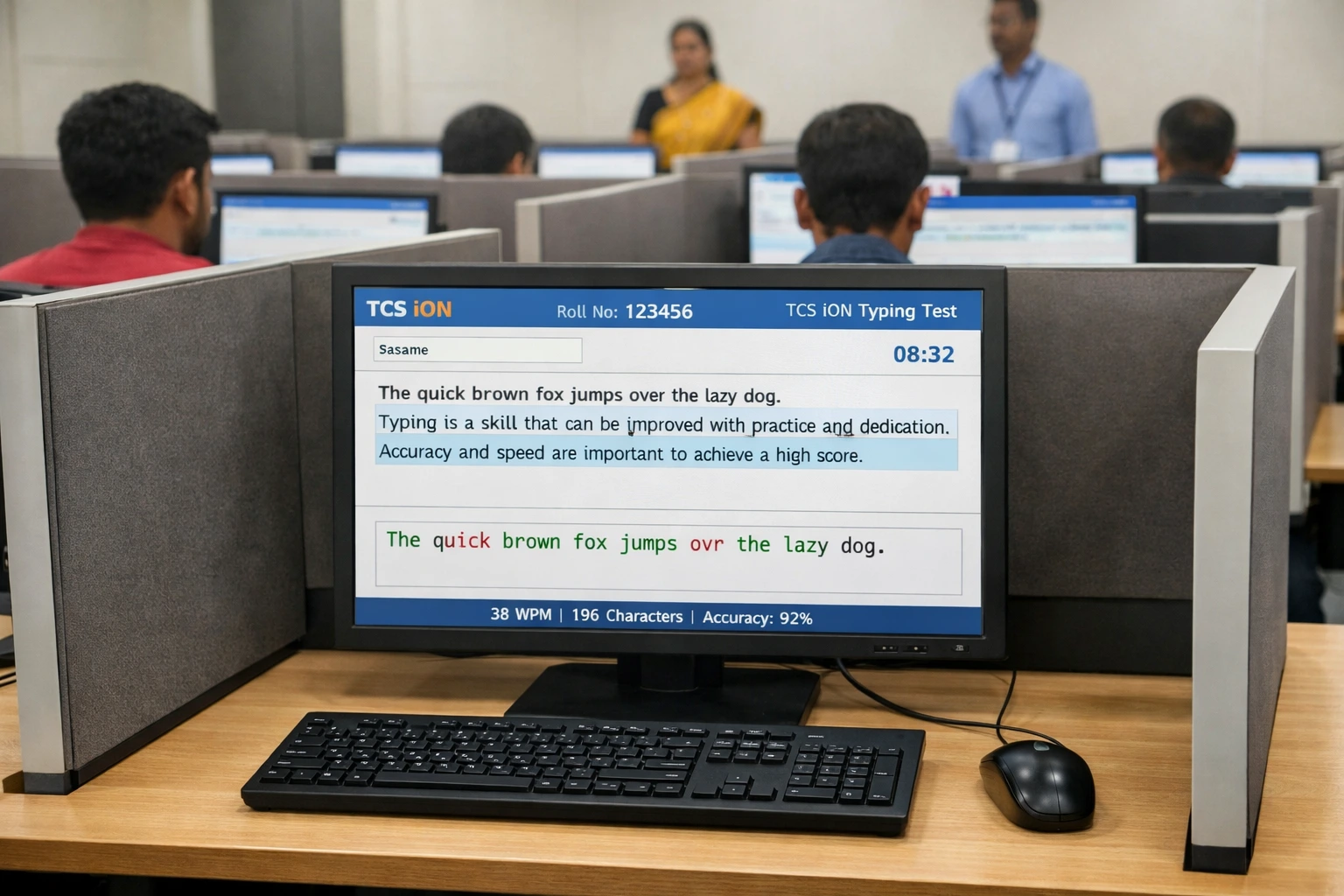
TCS iON टाइपिंग परीक्षा दिवस - कंप्यूटर लैब सेटअप
Exam Day का Actual Experience - क्या Expect करें?
Computer Lab Setup और Seating
Exam day पर जब आप TCS iON test center पहुंचेंगे, तो आपको एक computer lab में भेजा जाएगा। यह generally एक बड़ा room होता है जिसमें rows में computers arranged होते हैं। Each computer का अपना cubicle या partition होता है ताकि candidates एक-दूसरे को distract न करें। आपको एक specific seat number allot होगा जो आपके admit card पर printed होता है। उस seat पर जाएं और verify करें कि computer properly working है। Screen on है, keyboard responsive है, mouse (अगर required है) काम कर रहा है।
Computer specifications generally moderate होते हैं - आपको latest high-end machine expect नहीं करनी चाहिए। Monitor size 17-19 inches होगा typically। Keyboard standard membrane type होगा, mechanical नहीं। Key feel थोड़ा अलग लग सकता है अगर आप घर पर different keyboard use करते हैं। यही reason है कि मैं recommend करता हूं practice के लिए standard keyboard use करना, कुछ बहुत specialized या customized नहीं। Exam center का environment थोड़ा noisy हो सकता है - बहुत सारे candidates simultaneously type कर रहे होंगे, तो keyboard clicks की continuous sound रहेगी। इसके लिए भी mentally prepared रहें।
Login Process और Instructions
Exam start होने से पहले आपको login करना पड़ेगा TCS iON portal पर। Invigilator आपको credentials देंगे - usually roll number और password। Login करने के बाद आपको instruction page दिखेगा। यह बहुत detailed होगा - test duration, passing criteria, dos and don'ts, technical instructions। इसे carefully पढ़ें भले ही आप पहले से जानते हों। Sometimes last-minute changes होते हैं जो instruction page पर mentioned होते हैं। Reading के लिए typically 5-10 minutes दिए जाते हैं।
Instructions के बाद एक confirmation screen आएगी - 'I have read and understood all instructions' type का checkbox। Tick करें और proceed करें। फिर कुछ centers में एक practice screen होती है जहां आप 1-2 minutes के लिए interface को test कर सकते हैं। यह बहुत valuable है - इसका maximum use करें। Keyboard को feel करें, speed check करें, backspace test करें, देखें कि display कैसा दिख रहा है। अगर कोई technical issue है (keyboard के कुछ keys काम नहीं कर रहे, monitor बहुत dim है, etc.) तो immediately invigilator को inform करें इसी practice phase में। Actual test शुरू होने के बाद complaints generally entertain नहीं होती।
Test के दौरान - Real-time Experience
जैसे ही actual test start होता है, timer countdown शुरू हो जाता है। पहले few seconds में panic मत करें। एक deep breath लें और comfortably settle हो जाएं। Passage screen पर appear होगा। पहले 10-15 seconds passage को quickly scan करें - किस type की content है (formal, technical, narrative), कितने paragraphs हैं, roughly कितनी length है। यह mental preparation आपको confidence देगी। फिर बिना किसी hesitation के typing शुरू करें। Proper pacing maintain करें - न बहुत fast, न बहुत slow।
Test के दौरान आपको कई visual और audio feedbacks मिलेंगे। Correct characters green में दिखेंगे, incorrect ones red में। यह instant feedback use करें but obsess मत करें। अगर red दिखा तो immediately backspace से correct करें (अगर अभी word complete नहीं हुआ है)। Timer को periodically glance करें लेकिन continuously नहीं - हर 2-3 minutes में एक quick look sufficient है। कुछ centers में जब 5 minutes बचते हैं तो एक audio beep होती है या screen पर warning flash होती है। Isse panic मत होएं - यह सिर्फ एक reminder है।
अगर आपसे कोई गंभीर error हो जाती है - मान लीजिए पूरी line ही गलत type हो गई - तो उस पर dwell मत करें। Loss cut करें और आगे बढ़ें। आपका aim होना चाहिए maximum possible content accurately type करना, perfection नहीं। जैसे ही timer zero पर पहुंचता है, system automatically typing block कर देता है। आपकी last keystroke record होती है और test submit हो जाता है। कुछ seconds wait करें confirmation message के लिए। फिर invigilator की instructions follow करें logout के लिए।
Practice Tips - TCS iON Interface के लिए तैयारी
Simulated Practice Sessions
TCS iON interface के लिए सबसे effective preparation है simulated practice sessions। यानी ऐसे practice sessions जो actual exam environment को closely mimic करें। Mock tests दें जो TCS iON pattern follow करते हैं। multityping.in पर TCS iON जैसे interface में practice करने की सुविधा है। यहां आप exact duration के tests दे सकते हैं - 10 minutes, 15 minutes - जो actual exam में होंगे। Passages भी similar type के होते हैं - formal government communication style।
Simulated practice करते समय कुछ specific चीजों पर ध्यान दें। पहला - backspace policy। Deliberately practice करें current word correction की। कभी-कभी intentionally गलती करें और फिर तुरंत backspace से correct करें। यह muscle memory build करेगा। दूसरा - space bar का precise use। हर word के बाद single space, multiple spaces नहीं। तीसरा - scrolling के साथ comfortable होना। अगर practice platform में auto-scroll feature है तो उसे enable करें। अगर नहीं है तो manually scroll करते समय भी smooth typing maintain करने की practice करें।
Keyboard Familiarization
Exam center में जो keyboard होगा वो आपके home keyboard से अलग हो सकता है। इसलिए different keyboards पर practice करना good idea है। अगर possible हो तो कभी-कभी cyber cafe या library जाएं और वहां के computers पर practice करें। यह आपको different key feels, different tactile feedbacks के साथ comfortable बनाएगा। घर पर practice करते समय भी standard membrane keyboard use करें, कुछ बहुत specialized mechanical keyboard नहीं (unless आप sure हैं कि exam में वही मिलेगा, जो unlikely है)।
एक useful exercise है - blindfolded typing। यानी एक cloth से अपनी आँखें ढकें और फिर type करें। यह आपकी touch typing skills को dramatically improve करेगा। Exam में भी practically आप keyboard को dekhte नहीं हैं, तो यह realistic practice है। साथ ही, different postures में practice करें। कभी थोड़ा आगे झुककर, कभी सीधे बैठकर - क्योंकि exam center की chair और desk की height आपके home setup से अलग हो सकती है। Flexibility develop करें adapting to different physical setups की।
Mental और Psychological Preparation
Interface familiarity के साथ-साथ mental preparation भी जरूरी है। Visualization exercises करें - आँखें बंद करके imagine करें कि आप exam hall में बैठे हैं, TCS iON interface सामने है, timer चल रहा है, और आप smoothly type कर रहे हैं। यह positive visualization confidence build करती है। Exam day scenarios mentally rehearse करें including potential problems - क्या करेंगे अगर computer hang हो जाए? क्या करेंगे अगर keyboard के कुछ keys responsive नहीं हैं? Solutions mentally plan कर लें (immediately invigilator ko inform करना, backup system request करना, etc.)।
Stress management techniques practice करें। Deep breathing exercises, progressive muscle relaxation - ये सब helpful हैं exam anxiety ko manage करने में। याद रखें - interface सिर्फ एक tool है। आपकी core typing skill ही ultimate determinant है success का। Interface को over-complicate मत करें. बस familiarize हो जाएं, और फिर अपनी practice और preparation पर trust रखें। Exam day पर calm और confident रहें। आप prepared हैं, आपने सही practice की है, आप successfully test clear करेंगे - यह mindset रखें।
Common Problems और उनके Solutions
Problem 1: Initial Screen Confusion
Problem: बहुत से candidates बताते हैं कि जैसे ही test start हुआ, वे 10-15 seconds के लिए confused हो गए - 'कहां से शुरू करूं? कहां type करना है? Timer कहां है?' यह initial disorientation precious seconds waste करती है और nervousness बढ़ाती है।
Solution: Pre-exam में instructions और practice screen को बहुत attentively use करें। उन few minutes में पूरे interface को mentally map कर लें। 'Passage यहां है top में, input box यहां है नीचे, timer वहां है right corner में' - यह mental map बना लें। Actual test start होते ही आपको exactly पता होना चाहिए कि क्या करना है। साथ ही घर पर भी visualize करें interface ko। Screenshots देखें TCS iON interface के (online search करें, बहुत मिल जाएंगे) और उन्हें ध्यान से study करें। Familiarity ही confusion को eliminate करती है।
Problem 2: Accidental Backspace Over-use
Problem: कुछ लोगों को backspace की बहुत आदत हो जाती है practice में। Test में भी वे हर छोटी-मोटी गलती पर immediately backspace मारते हैं, कभी-कभी unnecessarily भी। यह typing flow को disrupt करता है और time waste होता है।
Solution: Backspace को judiciously use करना सीखें। हर typo को correct करना जरूरी नहीं है। अगर mistake minor है (एक character का slight variation जो overall accuracy को drastically affect नहीं करेगा) तो sometimes उसे छोड़कर आगे बढ़ना better strategy है than रुककर correct करना। Practice में यह judgment develop करें - 'यह error serious है, correct करनी चाहिए' vs 'यह minor है, skip कर सकते हैं'। साथ ही accuracy improvement पर काम करें ताकि errors naturally कम हों और backspace की frequency कम हो।
Problem 3: Timer Distraction
Problem: Timer constantly visible होता है और कुछ candidates इसे बार-बार dekhte रहते हैं। 'कितना time बचा? कितना हो गया?' यह obsessive timer-watching typing को disturb करता है और anxiety बढ़ाता है।
Solution: Timer checking को discipline करें। Pre-decide करें कि आप timer ko सिर्फ specific intervals पर देखेंगे - हर 3-4 minutes में एक quick glance। Bाकी time आपका focus सिर्फ typing पर होना चाहिए। एक technique है - timer को peripheral vision में रखें। Matlab आप directly timer को नहीं देख रहे, लेकिन corner of your eye में aware हैं कि वो वहां है। अगर कोई critical stage आती है (जैसे timer red हो जाता है indicating last minutes), तो आपको automatically pata चल जाएगा बिना explicitly देखे। Practice में भी यह discipline develop करें - mock tests के दौरान timer checking को minimize करें।
External Resources और Further Learning
TCS iON typing interface के बारे में और जानने के लिए कुछ useful external resources हैं। सबसे official source है TCS iON की official website जहां candidate guidelines और demo videos available हैं। यहां आप sample test भी try कर सकते हैं जो actual interface को replicate करता है। Government exam conducting bodies की websites पर भी helpful information होती है - SSC official website, Railway Recruitment Board - ये सब TCS iON के साथ partner करते हैं तो इनके exam guidelines भी relevant हैं।
YouTube पर भी बहुत सारे helpful videos हैं जहां candidates अपने exam experiences share करते हैं। Search करें 'TCS iON typing test experience' या 'SSC CGL typing test interface' - आपको first-hand accounts मिलेंगे। लेकिन ध्यान रखें कि interfaces में minor variations हो सकते हैं different exams या different years में। तो multiple sources से information gather करें और common patterns identify करें। Forums जैसे Quora, Reddit के India-specific communities में भी discussions होते हैं typing tests के बारे में। यहां आप directly questions भी पूछ सकते हैं experienced candidates से।
सबसे important - regular और structured practice. multityping.in पर daily practice करें। यहां आपको TCS iON pattern के tests, SSC specific passages, realistic mock tests - सब कुछ मिलेगा। साथ ही consistent practice schedule बनाएं और follow करें। Theory knowledge useful है लेकिन actual skill practice से ही develop होती है। जितना ज्यादा practice, उतना ज्यादा confidence exam day पर।
Frequently Asked Questions
TCS iON typing interface में backspace कितनी बार use कर सकते हैं?
Backspace use करने की कोई fixed limit नहीं है लेकिन आप सिर्फ current word में ही backspace कर सकते हैं। एक बार space bar press करके word complete हो गया तो उस word में वापस जाकर edit नहीं कर सकते। हर backspace keystroke count होता है जो आपके gross speed को affect कर सकता है। इसलिए judiciously use करें - सिर्फ significant errors को correct करें, minor typos को sometimes skip करना better है।
क्या passage manually scroll कर सकते हैं?
नहीं, TCS iON typing test में manual scrolling की option नहीं होती। Passage automatically scroll होता है जैसे-जैसे आप type करते हैं। यह auto-scrolling आपकी typing speed के साथ synchronized होती है। Mouse और keyboard के arrow keys scrolling के लिए काम नहीं करते। यह intentional restriction है test integrity maintain करने के लिए। Auto-scrolling के साथ comfortable होने के लिए practice sessions में भी इसे simulate करें।
Screen पर WPM real-time में दिखता है क्या?
हाँ, TCS iON interface में real-time WPM counter होता है जो continuously update होता रहता है। यह generally screen के bottom section में display होता है। लेकिन ध्यान दें - यह gross WPM होता है (errors subtract करके नहीं)। तो अगर आप fast type कर रहे हैं लेकिन errors भी हो रही हैं, तो displayed WPM actual net WPM से higher होगा। इस WPM counter को reference के लिए use करें लेकिन obsess मत करें। Focus रखें accurate typing पर।
Exam hall में keyboard कैसा होगा?
TCS iON test centers में generally standard membrane keyboards होते हैं। ये budget-friendly, basic keyboards होते हैं - न mechanical, न ergonomic। Key feel थोड़ा mushy हो सकता है, tactile feedback limited होगा। Different keyboard types पर practice करना good idea है। Home पर भी standard membrane keyboard use करें preparation के लिए। कुछ बहुत specialized या premium keyboard पर dependent मत हो जाएं। Adaptability important है - आप किसी भी standard keyboard पर comfortably type कर पाना चाहिए।
Test के बीच में technical problem आ जाए तो क्या करें?
अगर test के दौरान कोई technical issue आती है - computer hang हो जाए, keyboard respond नहीं कर रहा, screen freeze हो गया - तो immediately hand raise करें और invigilator को call करें। Panic मत करें, loudly चिल्लाएं नहीं। Calmly invigilator का attention attract करें। TCS iON systems में generally backup mechanisms होते हैं। Invigilator system restart कर सकते हैं या आपको दूसरे computer पर shift कर सकते हैं। Lost time का compensation भी generally दिया जाता है genuine technical issues में। Important है कि issue immediately report करें, test complete होने के बाद नहीं।
Practice sessions में interface को exactly replicate कैसे करें?
Perfect replication मुश्किल है लेकिन आप काफी close जा सकते हैं। multityping.in पर TCS iON pattern के tests available हैं। Yहां practice करते समय: (1) Full screen mode use करें distractions eliminate करने के लिए। (2) Timer enable रखें और visible position में। (3) Backspace policy consciously follow करें - current word में ही correction। (4) Fixed duration tests लें (10/15 minutes) जैसे actual exam में होंगे। (5) Realistic passages choose करें - formal, government communication style। Regular ऐसे structured practice से आप interface के बहुत close experience पा सकते हैं।
निष्कर्ष - Interface को अपना Friend बनाएं
दोस्तों, TCS iON typing interface initially intimidating लग सकता है लेकिन proper understanding और practice के साथ यह बिल्कुल manageable है। याद रखें - interface सिर्फ एक medium है आपकी typing skills को demonstrate करने का। आपकी core skill - fast और accurate typing - वही है चाहे interface कोई भी हो। इस guide में मैंने आपको TCS iON interface की हर detail explain की है - screen layout, passage display, input box, backspace policy, auto-scrolling, exam day experience, common problems और solutions। अब आप पूरी तरह equipped हैं actual exam face करने के लिए।
Action plan यह होना चाहिए - आज से ही targeted practice शुरू करें interface familiarity के लिए। multityping.in पर daily sessions करें TCS iON pattern में। Mock tests regularly दें। Different keyboards पर practice करें। Mental visualization exercises करें। और सबसे important - confident रहें। आपने सही preparation की है, आप interface को समझ गए हैं, आप ready हैं। Exam day पर nervous होना natural है लेकिन panic नहीं करना। Interface को देखकर 'अरे यह तो मैंने practice किया है' feeling आनी चाहिए, 'यह क्या है?' नहीं।
TCS iON interface को अपना enemy मत समझें, बल्कि एक familiar tool की तरह treat करें। जितना ज्यादा आप इससे interact करेंगे practice में, उतना ज्यादा comfortable होंगे। और जब comfort आती है तो performance automatically improve होती है। तो देर किस बात की? Start करें आज से ही - structured practice, interface familiarization, और mental preparation। Your typing test success journey में यह एक crucial step है। All the best! 🖥️💪