Smart Touch Typing Analyzer
Find weak fingers, identify problem keys, and learn proper finger placement
Master Touch Typing with Professional Guidance
Experience the most advanced typing practice tool with real-time finger placement visualization, instant feedback, and comprehensive performance analytics designed to find your weak typing areas.
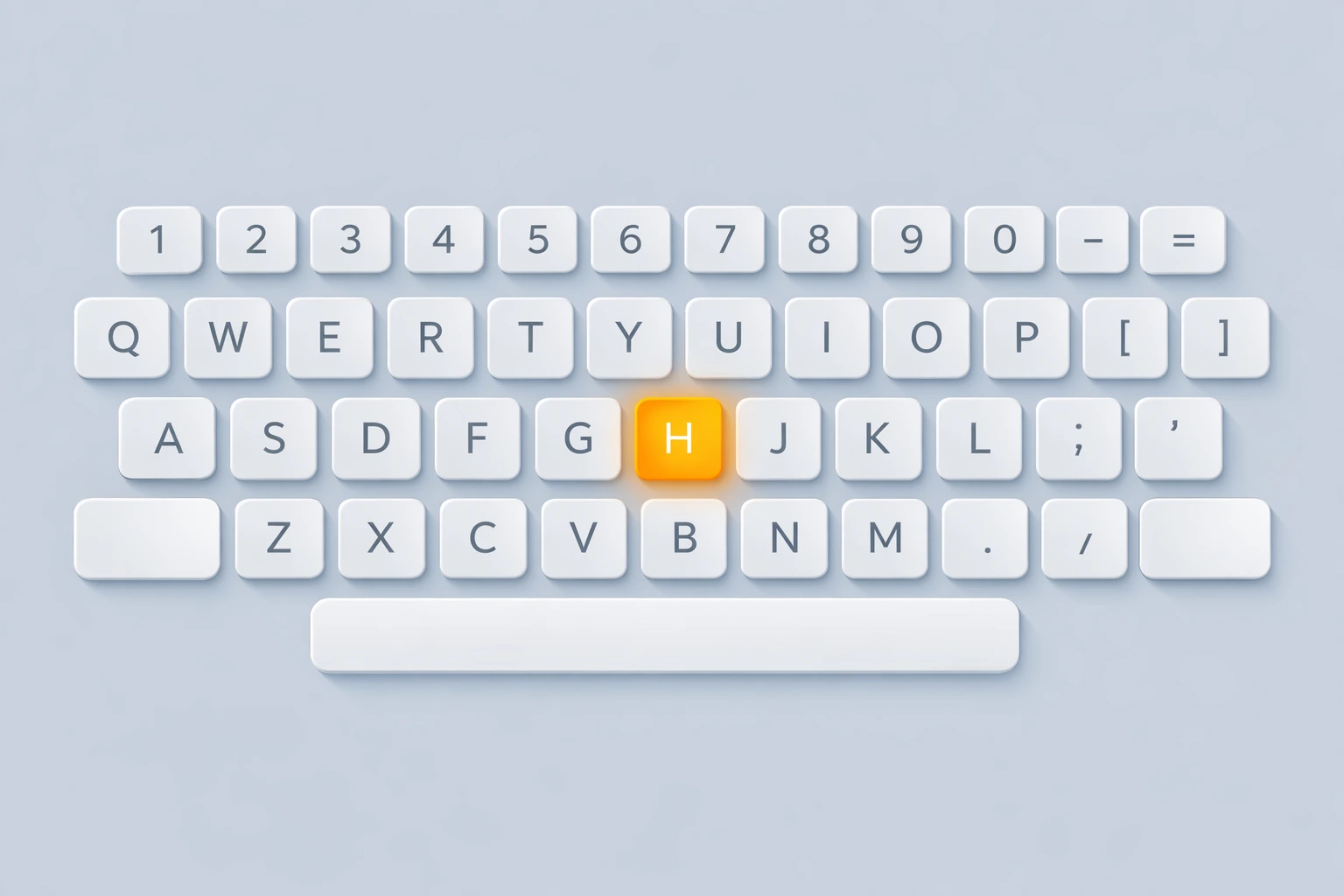
🎯 Visual Keyboard Guidance
Never look down at your keyboard again! Our intelligent virtual keyboard highlights the exact key you need to press next, helping you build muscle memory naturally and efficiently.
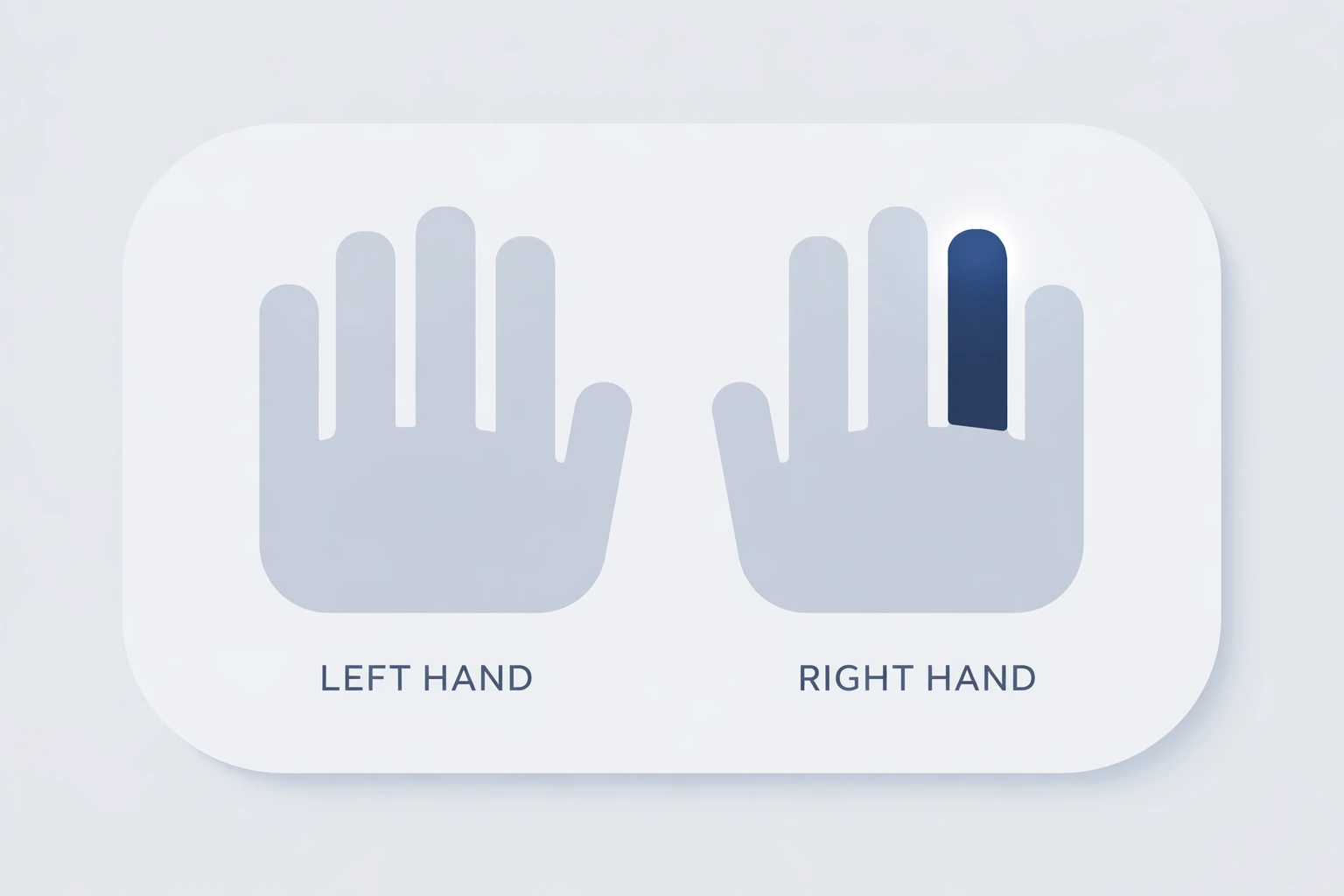
✋ Smart Finger Placement
See exactly which finger should press each key with our revolutionary shadow hand visualization. The glowing finger indicator ensures you're always using the correct finger, building professional typing habits from day one.
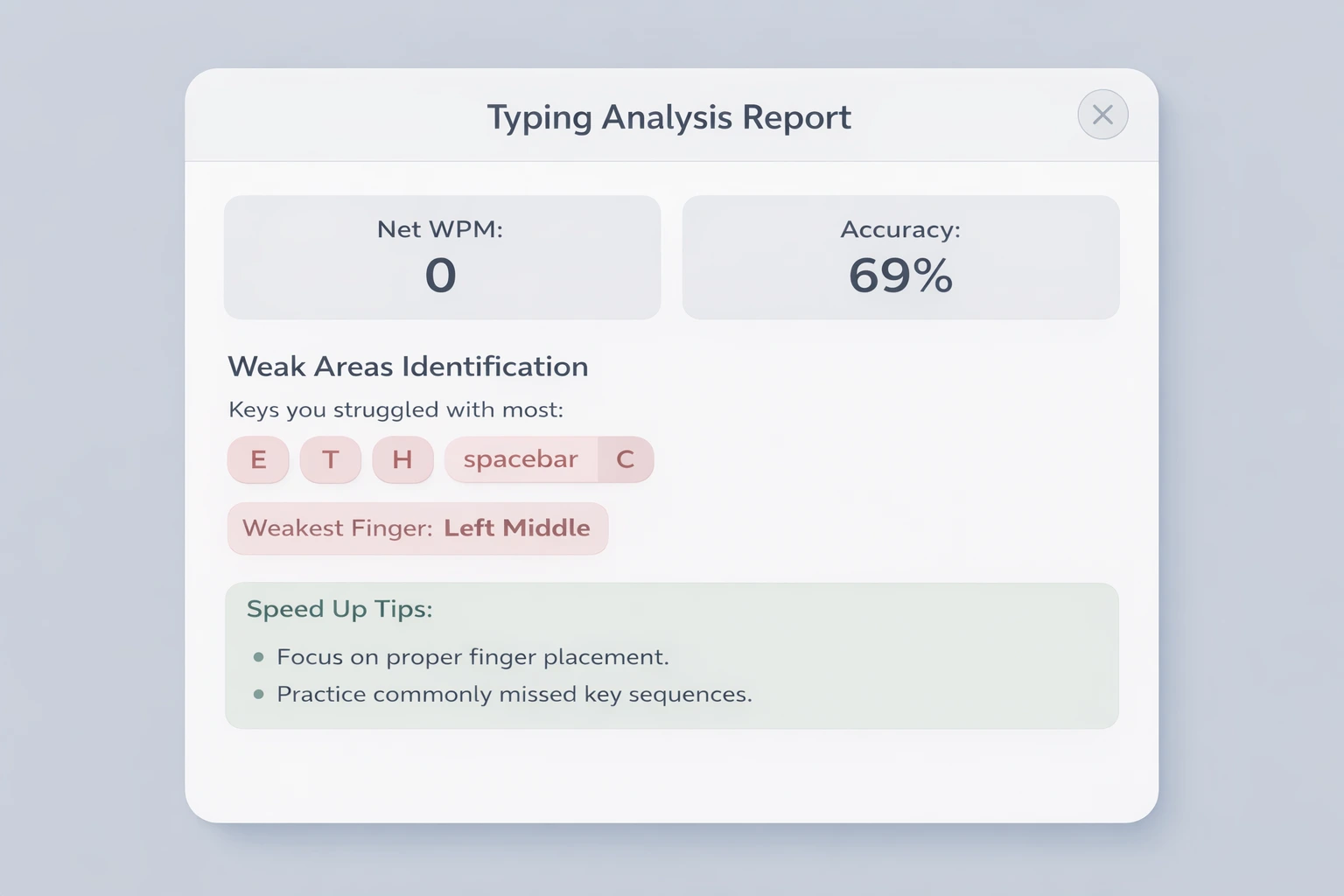
📊 Detailed Analytics Report
Get comprehensive insights into your typing performance. Identify your weakest fingers, discover problematic keys, and receive personalized improvement tips to accelerate your progress.
Why Choose Our Smart Typing Analyzer?
Instant Feedback System
Get immediate visual feedback with green flashes for correct keys and red flashes for errors, helping you learn from mistakes in real-time.
Perfect for Beginners
Start your typing journey with confidence. Our tool guides you through every keystroke, making touch typing accessible to everyone.
Job & Career Ready
Build professional typing skills with real-time analytics, perfect for data entry, coding, office work, and typing certifications.
Track Your Progress
Monitor your improvement with real-time WPM, accuracy percentage, and comprehensive performance history.
Identify Weak Areas
Our advanced analytics pinpoint exactly which fingers and keys need more practice, optimizing your training time.
Smart Learning Tips
Receive personalized improvement suggestions based on your typing patterns and common mistakes.
How It Works - Your Path to Typing Mastery
Watch the Highlight
Focus on the virtual keyboard where the yellow highlight shows you exactly which key to press next. Don't look at your physical keyboard!
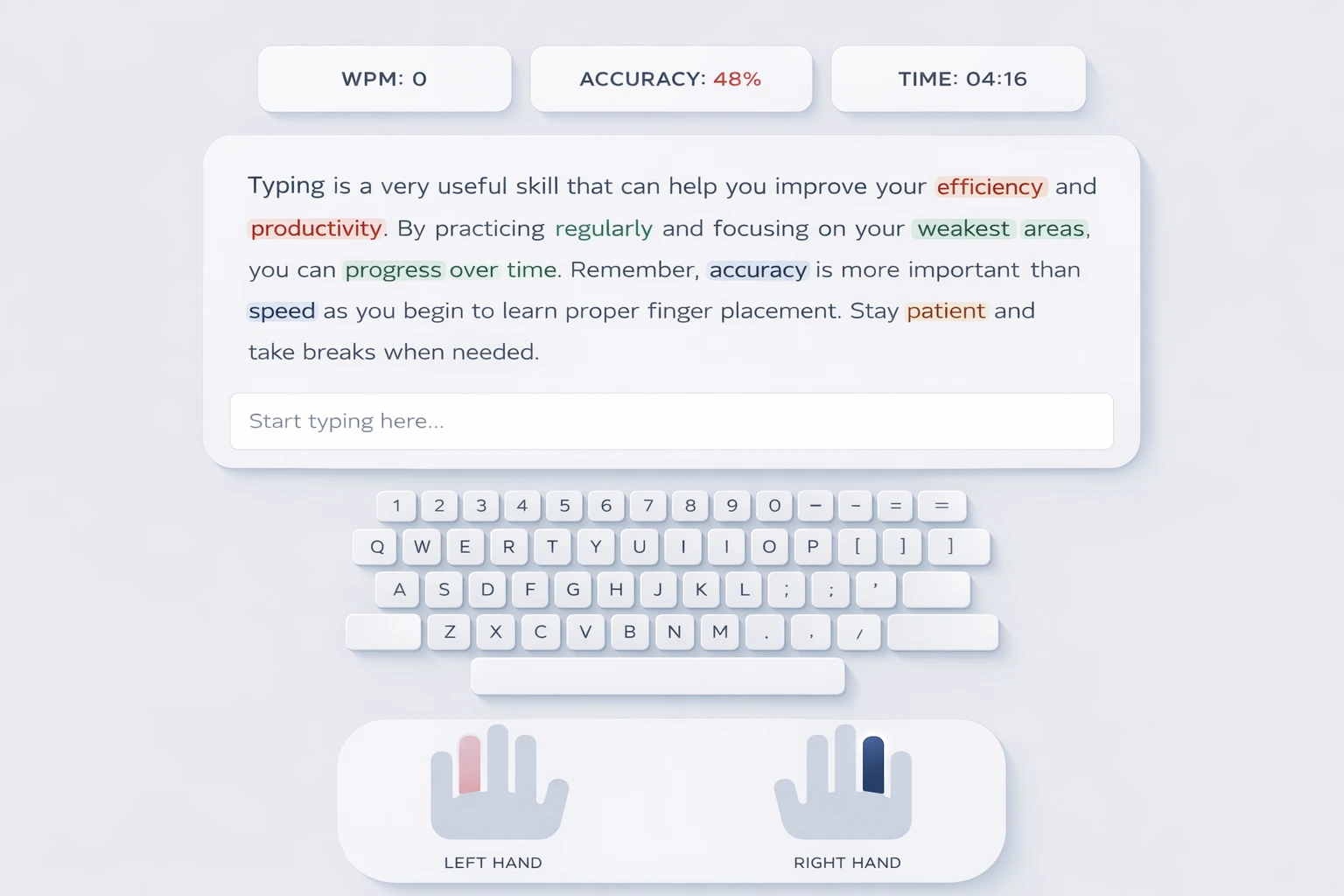
Use Correct Finger
Observe the shadow hands below the keyboard. The glowing finger shows you which finger should press the highlighted key, building proper muscle memory.
Learn from Feedback
Press the key and watch the instant color feedback - green for correct, red for errors. This immediate response helps you correct mistakes instantly.
Advanced Performance Analysis
After completing each typing session, receive a comprehensive analysis report that goes beyond simple WPM and accuracy metrics. Our tool identifies patterns in your typing behavior to help you improve faster.
🔍 Weak Key Detection
Discover which specific keys cause you the most trouble. Our algorithm tracks every keystroke to identify patterns in your errors.
👆 Finger Strength Analysis
Find out which fingers are your weakest links. We analyze performance by finger to show you exactly where to focus your practice.
💪 Personalized Tips
Get customized improvement suggestions based on your unique typing patterns and performance data.
📊 Performance Metrics
Track your Net WPM, accuracy percentage, error rate, and consistency across multiple sessions to measure your growth.
Ready to Transform Your Typing Skills?
Join thousands of successful typists who improved their speed and accuracy with our smart typing analyzer tool.
Start Typing Practice NowFrequently Asked Questions
Got questions? We've got answers! Here are the most common questions our users ask about improving their typing skills.
❓ How long will it take me to learn touch typing?
+Most people can learn the basics of touch typing in about 2-3 weeks with consistent daily practice of 15-20 minutes. However, becoming truly proficient and reaching speeds of 40-60 WPM typically takes 2-3 months. Remember, everyone learns at their own pace - don't compare yourself to others! Focus on accuracy first, and speed will naturally follow.
❓ Why do I keep making the same mistakes over and over?
+This is completely normal! Your brain is fighting years of muscle memory. The key is to slow down when you notice yourself making repeated errors. Our tool shows you exactly which keys are problematic - practice those specific keys in isolation for 5 minutes before each session. Also, make sure you're using the correct finger (watch the glowing finger guide). Bad habits form when we rush!
❓ Should I look at the virtual keyboard or the text passage?
+Great question! For beginners, it's okay to glance between both. Start by looking at the virtual keyboard to see which key is highlighted and which finger to use. As you get comfortable, gradually shift your focus more to the text passage. After a few weeks, you should be able to read the passage while your hands automatically find the right keys. That's when you know you've developed true touch typing skills!
❓ My WPM is stuck at the same number. How do I break through?
+Hitting a plateau is frustrating but totally normal! Here's what usually works: First, check your accuracy - if it's below 95%, slow down and focus on accuracy for a week. Second, practice your weak fingers (our tool identifies these for you). Third, take a 2-3 day break to let your muscle memory consolidate. Often, you'll come back faster! Also, try practicing at different times of day - some people type faster in the morning, others at night.
❓ Is 30 WPM good for a beginner?
+Absolutely! 30 WPM with good accuracy (above 90%) is actually excellent for a beginner. For reference, the average person types around 40 WPM, office workers typically hit 50-60 WPM, and professional typists reach 70-80 WPM. Most professional data entry and office jobs require a 30-35 WPM minimum. So if you're already at 30 WPM, you're on the right track! Keep practicing consistently, and you'll easily reach 40-50 WPM within a couple of months.
❓ Can I practice without looking at the finger placement guide?
+You can, but I wouldn't recommend it - at least not yet! The finger placement guide is there to build correct muscle memory from the start. If you skip it, you might develop bad habits that are really hard to break later. Use it religiously for the first month. After that, once you can type entire sentences without looking at your physical keyboard, you can gradually ignore the finger guide. But honestly, even experienced typists find it helpful for less common keys!
❓ My fingers hurt after typing for 10 minutes. Is this normal?
+A little fatigue is normal when you're just starting out, but pain is not okay! This usually means you're tensing up or pressing keys too hard. Here's what to do: Keep your wrists straight and slightly elevated (don't rest them on the desk). Relax your shoulders and arms. Type with gentle, light touches - you don't need to pound the keys! Take breaks every 10-15 minutes. If pain persists, definitely check your posture and consider getting an ergonomic keyboard or wrist rest.
❓ What's better - short daily practice or long weekend sessions?
+Short daily practice wins every time! Your brain learns motor skills best through spaced repetition. Fifteen minutes every day is far more effective than two hours once a week. Think of it like going to the gym - consistent small workouts build muscle better than occasional marathon sessions. Plus, daily practice prevents you from forgetting what you learned and keeps your muscle memory fresh. Even 10 minutes daily will show amazing results within a month!
❓ Do I need to memorize the keyboard layout?
+Nope, you don't need to consciously memorize anything! That's the beauty of muscle memory. Just follow our virtual keyboard guide, use the correct fingers, and practice regularly. Your fingers will automatically "remember" where each key is after enough repetitions. It's similar to learning to ride a bike - you don't think about balancing, you just do it. Same with typing! After a few weeks, you'll find your fingers moving to the right keys without any conscious thought.
❓ What if I already type fast with 2-3 fingers? Should I still learn proper technique?
+Yes, definitely! I get it - changing your method when you already have some speed is frustrating. You'll temporarily slow down while learning proper technique. But here's the thing: proper 10-finger typing has a much higher ceiling. You might max out at 40-50 WPM with hunt-and-peck, but with proper technique, 60-80 WPM becomes achievable. Plus, you'll make fewer errors, feel less strain, and be able to focus on what you're writing instead of finding keys. The initial slowdown is temporary, but the benefits last forever!
❓ How accurate should I be before trying to increase speed?
+Aim for at least 95% accuracy before pushing for speed. Here's why: if you practice typing fast with lots of errors, you're actually training your fingers to make mistakes quickly! That's the opposite of what we want. Once you consistently hit 95-98% accuracy, then you can gradually increase your typing speed. Think of it this way: you're building a foundation. A strong, accurate foundation can support much higher speeds later. Rush the foundation, and everything crumbles!
❓ How does the weak finger and key detection work?
+Our smart analyzer tracks every single keystroke you make in real-time. By analyzing your typing patterns, error rates on specific keys, and mapping them to the exact fingers used to press them, the tool identifies exactly which fingers and keys are slowing you down. Instead of just giving you a final WPM score, it provides a personalized roadmap so you can focus your practice strictly on your weakest areas!
Pro Tips for Faster Progress
Accuracy First, Speed Second
Focus on typing accurately at a comfortable pace. Your speed will naturally increase as your muscle memory develops. Rushing leads to bad habits that are hard to break.
Master the Home Row
Keep your fingers on the home row keys (ASDF - JKL;) at all times. Return to this position after every keystroke to maintain proper form and speed.
Eyes on Screen Only
Train yourself to look only at the virtual keyboard and text, never at your physical keyboard. This is crucial for developing true touch typing skills.
Practice Consistently
Daily 15-20 minute practice sessions are more effective than occasional long sessions. Consistency is the key to building lasting muscle memory.
Proper Hand Position
Keep your wrists slightly elevated and straight. Avoid resting them on the desk while typing to prevent fatigue and maintain proper finger reach.
Find Your Rhythm
Develop a steady, rhythmic typing pattern. Consistent timing between keystrokes improves both speed and accuracy over time.