📄 Image Typing Test — Paper-to-Screen Simulator
Practice typing exactly like a real government exam — read from a document image and type it out. Choose your language, adjust the layout, apply image filters. Anti-cheat protection is enabled by default.
Select a document above to begin.
Image text is protected — type what you read.
Test Completed!
Here are your image typing results
✅ Original Text
⌨️ Your Typed Text
Image Typing Test — The Complete Guide
From Beginner to Expert
The most realistic typing practice tool for government exam preparation. Learn how this tool works, what features it offers, and how to use it step by step — explained in simple, clear language.
What Is the Image Typing Test?
Picture a real government exam scenario — an official document or court order image appears on screen, and you have to read it and type it out. That is exactly what the Image Typing Test replicates with precision.
Most typing tools give you plain text — you can copy-paste or memorize it beforehand. But in a real exam, you get a document IMAGE — you must read from it and type. That is how this tool works too. The document image is on screen, you read it and type — and the image cannot be copied or dragged.
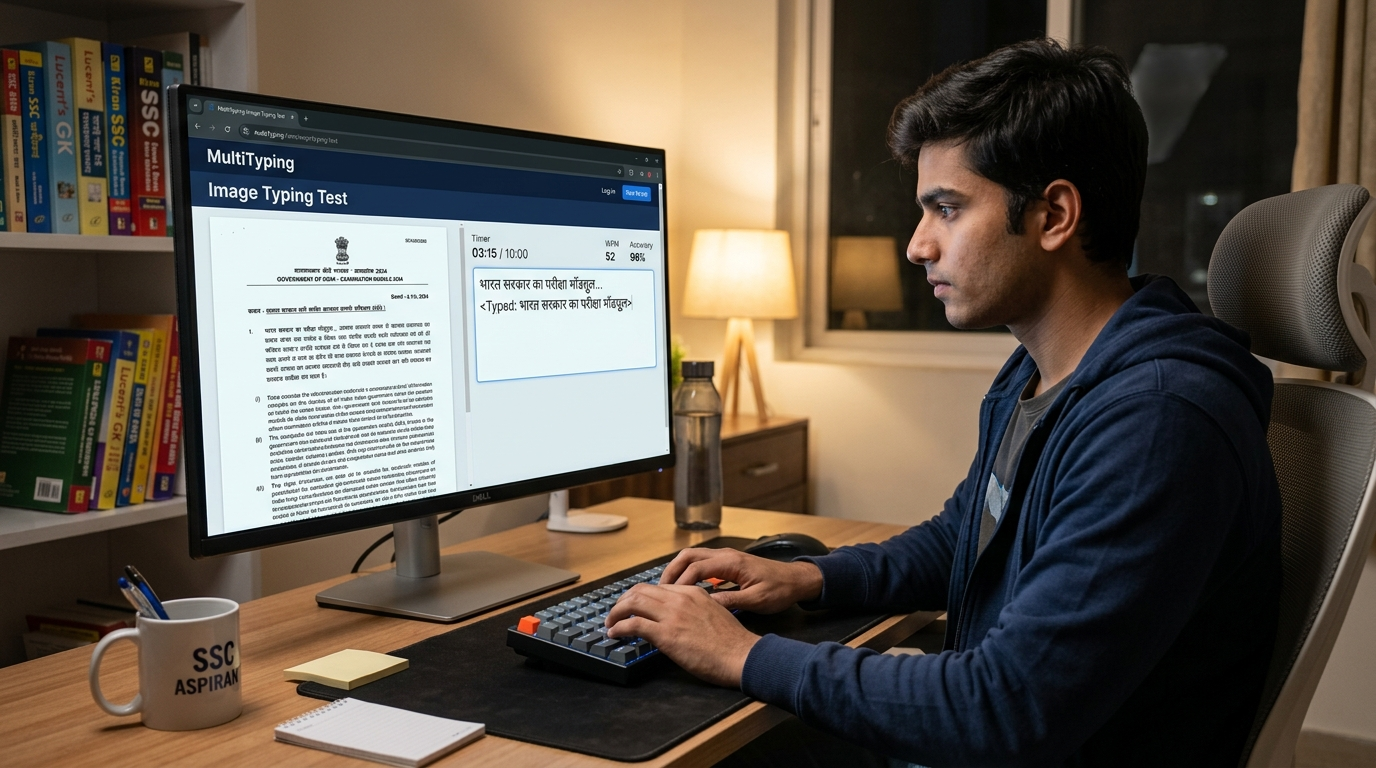
No account required, no payment needed. Open the page, choose a document, and start practicing immediately. Best experienced on a desktop, since real exams are conducted on computers.
Top Features of the Tool — What Actually Matters
A tool wins through real-world usefulness, not just a long feature list. Here is an explanation of what each feature actually changes about your practice experience.
Resizable Split Layout
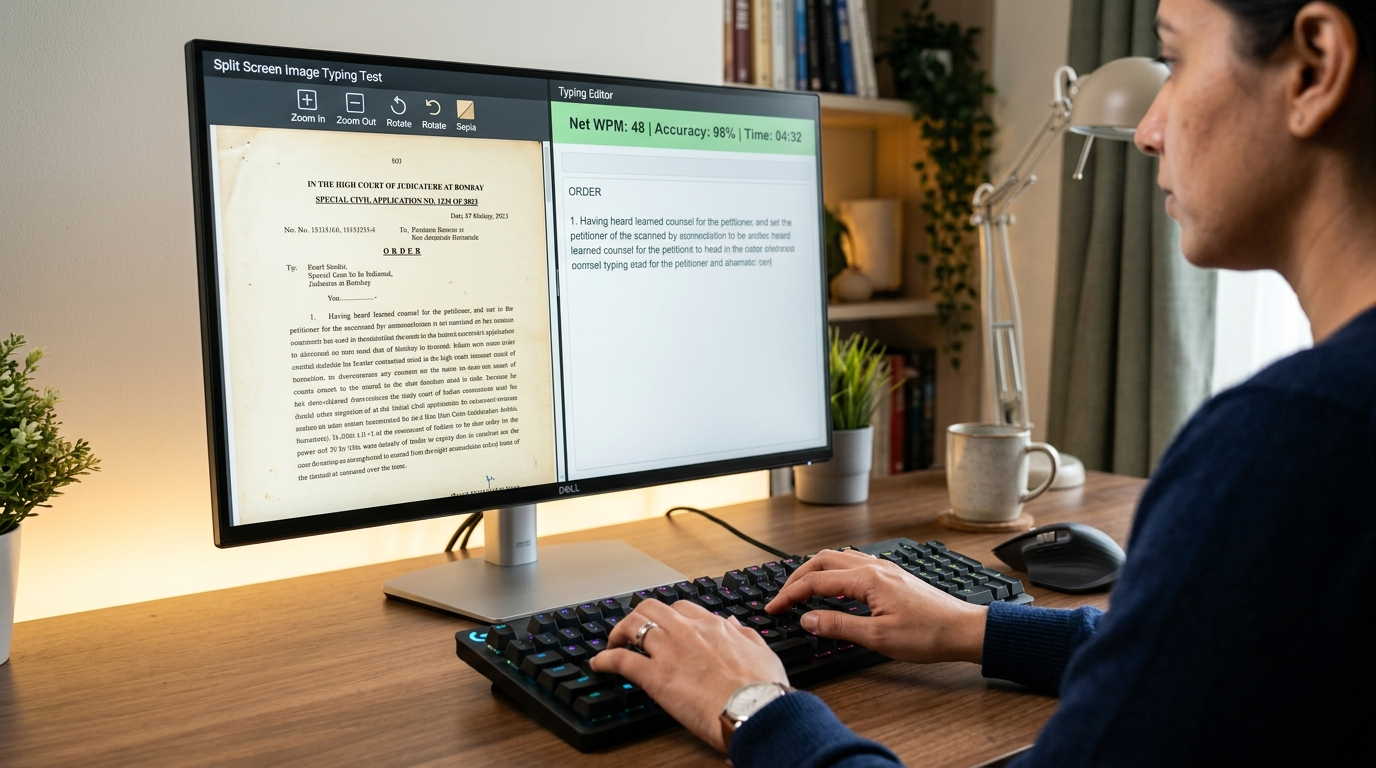
Drag the divider between the image panel and typing panel — give more space to the image at first, then shift space to the typing area as you settle in.
Vertical & Horizontal Layout
Image above or beside — choose based on your screen. Vertical works better on laptops, while horizontal is preferred on wide monitors.
Image Filters (Normal / Sepia / Dark)
Sepia mode reduces eye strain and gives the feel of real government documents. Dark filter is comfortable for late-night practice sessions.
Zoom In / Out
Government documents sometimes have small fonts — zoom in to read clearly, then type. Simple but essential for realistic practice.
Anti-Cheat Mode
The image cannot be copied, dragged, or right-clicked. Real exams work the same way — this ensures honest practice and builds the skill you actually need.
Customizable Timer
Set a timer from 5 to 60 minutes — or enter a custom duration. Matching your exam's exact time trains your body clock and builds exam-ready stamina.
Image Rotate
Some scanned court documents come rotated — click this button to straighten the image. A small detail that makes a real difference during practice.
English & Hindi Support with Hindi Input
Switch to Hindi — Mangal Unicode activates automatically. Hindi Input mode lets you type phonetically in the textarea. Court orders, government letters, circulars — all available.
How to Use the Tool — Step by Step
Select Your Language
Click the "English" or "Hindi" tab at the top. For Hindi, Mangal Unicode activates automatically. If you need phonetic Hindi input, toggle the Hindi Input button in the typing panel.
Choose a Document
Select from the document buttons — "Court Order 1", "Govt Letter 2", etc. Once selected, the image appears in the left panel and the typing area is cleared and ready.
Adjust Layout & Filters (Optional)
The default layout is fine to start with. Try the Sepia filter for eye comfort. Zoom and rotate controls are available in the toolbar above the image.
Select a Timer Duration
Pick the duration that matches your target exam — 15 minutes for SSC CHSL, 10 minutes for High Court, etc. A custom time can also be set.
Click "Start Test" and Begin Typing
Click the typing area, press Start, and the timer begins. The image cannot be copied — just read and type. This is exactly how the real exam works.
Review Your Results
WPM, Accuracy, Errors, Key Depressions — all displayed. Most importantly, a side-by-side comparison of the original vs. your typed text, with incorrect words highlighted in red.
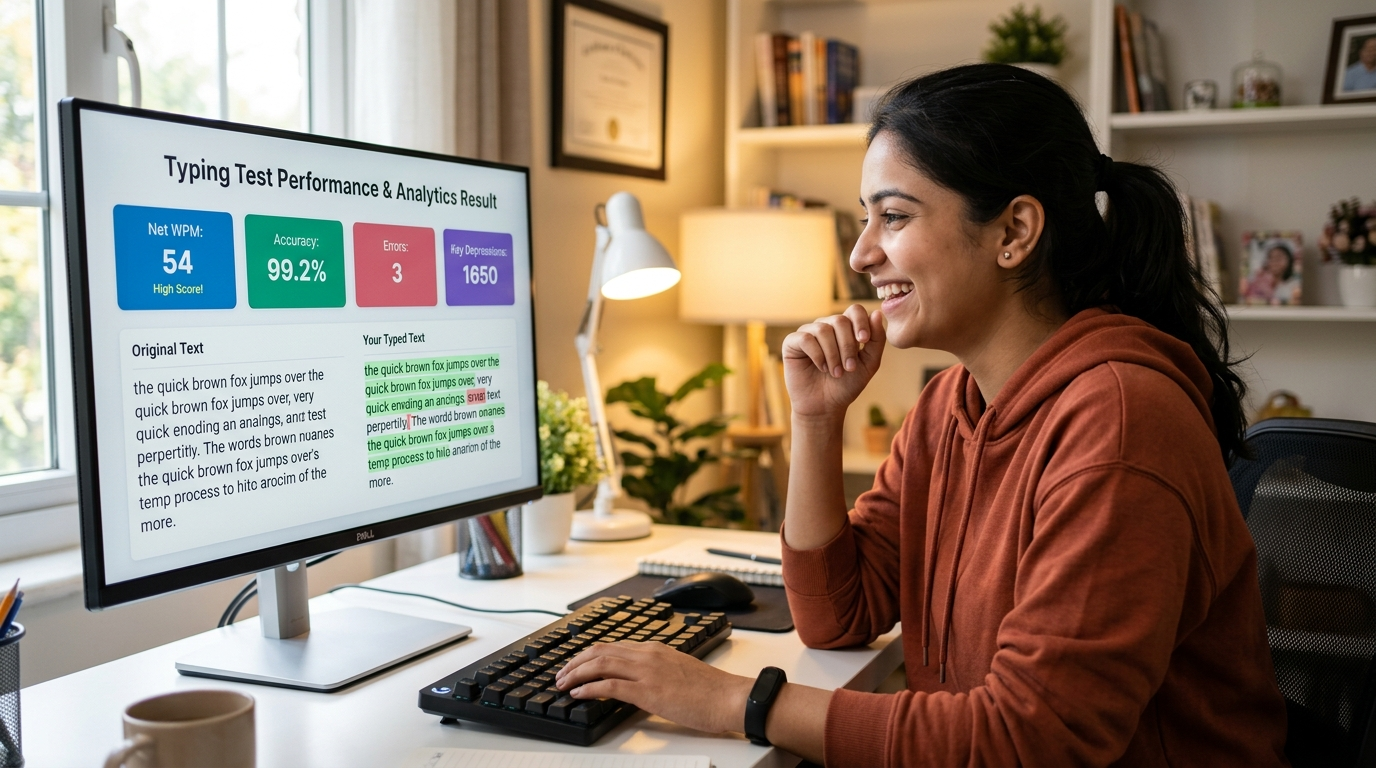
Do not just look at your WPM score — study the Comparison section. Understand the pattern behind each mistake: Did you miss a vowel? Skip punctuation? Reverse a spelling? Recognizing your error patterns leads to faster improvement than simply retrying.
Pro Tips to Boost Your Score
30 Minutes Daily Beats 2 Hours Occasionally
Consistency is everything in typing. Muscle memory is built through daily repetition. Thirty focused minutes every day delivers far more improvement than occasional long sessions.
Accuracy First, Speed Will Follow
Aim for 90%+ accuracy before chasing speed — even if your WPM is just 30. Once the right key habits form, speed increases naturally. Building speed on top of bad habits doubles your effort.
Master One Document Before Moving On
Reach 95%+ on a single document before switching to a new one. Improvement comes from repetition, not variety. Add variety only once you have consistency.
Never Look at Your Keyboard
This single habit change makes the biggest difference. The first two weeks will be a struggle — but the real improvement that follows is worth it. In the exam, your eyes must be on the screen, not the keyboard.
Practice at Your Exam Time
If your exam is at 10 AM, practice at 10 AM. Your brain performs best at the same time of day it was trained. This simple alignment gives you a real edge on exam day.
Use the Sepia Filter
Government documents are often scanned and low in contrast. The Sepia filter trains your eyes to read that quality comfortably — significantly reducing strain during the actual exam.
Which Exams Is This Tool Best For?
The Image Typing Test is perfect for every exam where a document image is displayed on screen and you are required to type from it:
| Exam | Speed Required | Duration | Language |
|---|---|---|---|
| SSC CHSL DEO | 8000 KDPH (English) | 15 min | English |
| SSC CGL DEO | 2000 KDPH (Hindi) | 15 min | Hindi |
| High Court DEO/Typist | 40 WPM (English) | 10 min | English/Hindi |
| Railway RRB NTPC | 30 WPM (English) | 10 min | English |
| State Govt DEO (UP, MP, etc.) | 25-35 WPM | 10-15 min | Hindi |
| Bank Clerk Typist (IBPS/SBI) | 20 WPM | 10 min | English |
The figures above are indicative. Always check your specific exam's official notification for the exact speed requirement and duration — these can change from year to year.
Frequently Asked Questions
Reading about it is not enough — start practicing now! 💪
Scroll back up and begin the Image Typing Test right away. The tool is completely free with no registration required. You will notice the difference within a single session.